
HTML for Gadgets, lesson 3 of 9
Make It Fit the Phone: head, title and viewport
Introduction
You open your ESP32's page on your phone and… the words are tiny. You have to pinch and zoom to read anything. The fix is one line in the <head>.
Working principle
The <head> holds information about the page. Three things in it matter for gadget pages:
<head>
  <meta charset="utf-8">
  <meta name="viewport" content="width=device-width, initial-scale=1">
  <title>My Smart Room</title>
</head>
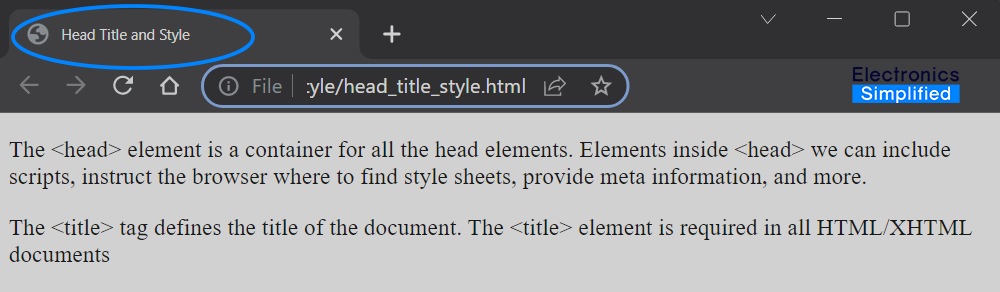
<meta charset="utf-8">lets the page show any letter or symbol, like °C or ✓.<meta name="viewport" …>tells the phone to use its own width (width=device-width) at normal zoom (initial-scale=1).<title>is the name on the browser tab and on bookmarks.
A first look at style
The head can also hold a <style> tag with CSS that changes how things look. You'll use it properly in lesson 6.
<style>
  body { background-color: aquamarine; }
</style>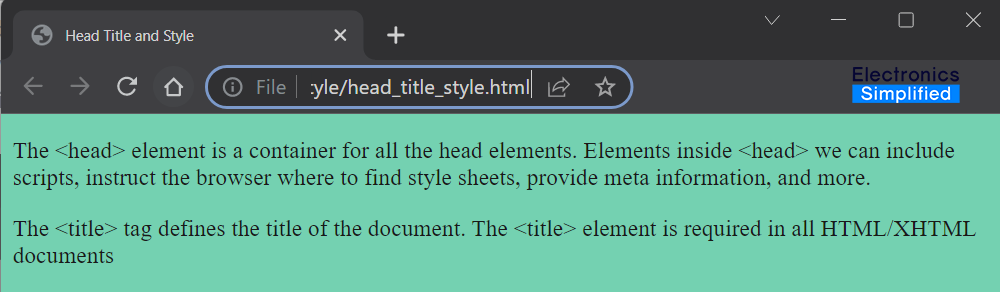
Try it
This page has no viewport line, so the phone shrinks it. Add the viewport line inside the <head> and watch the words grow.
The words are tiny. Add <meta name="viewport" content="width=device-width, initial-scale=1"> inside the head and watch the phone.
Check what you learnt
Why does a page without the viewport line look tiny on a phone?
Where does the <title> text show up?
Which tag lets the page show symbols like °C?
Conclusion
- The
<head>describes the page; the<body>is what you see. - Always add the viewport line to gadget pages, or they'll look tiny on phones.
<title>names the browser tab, and<style>will make things look good.
What next?
Buttons that do things: make a button that switches an LED.